xmanager 连接linux --suse 11 、redhat 6
1、 xmanager连接Suse方法步骤:
1、关闭Suse防火墙
# SuSEfirewall2 stop

2、 修改/etc/sysconfig/displaymanage文件,
DISPLAYMANAGER_REMOTE_ACCESS="no"
改为
DISPLAYMANAGER_REMOTE_ACCESS="yes"
DISPLAYMANAGER_ROOT_LOGIN_REMOTE = "no"
改为
DISPLAYMANAGER_ROOT_LOGIN_REMOTE = "yes"

3、 按照下面内容修改/etc/gdm/custom.conf文件的xdmcp及security小节
[xdmcp]
Enable=true
[security]
DisallowTCP=true
AllowRemoteRoot=true

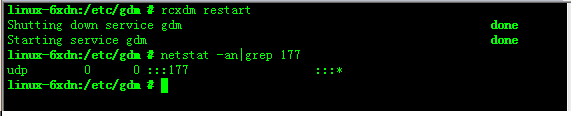
4、 重启xdm,观察有没有UDP 177端口开通。
# rcxdm restart
# netstat -an|grep 177
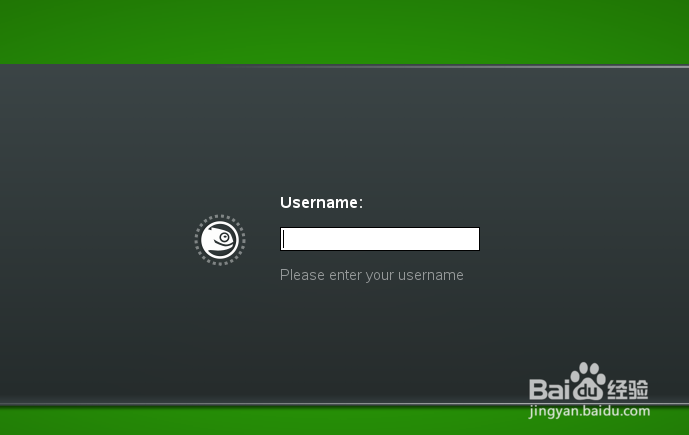
5、 启动xmanger连接suse
Xmanager -->xbrowser,在地址栏输入要访问的IP,然后连接即可。
1、 这里以连接Centos6为例,先关闭防火墙
# service iptables stop
#chkconfig --level 345 iptables off
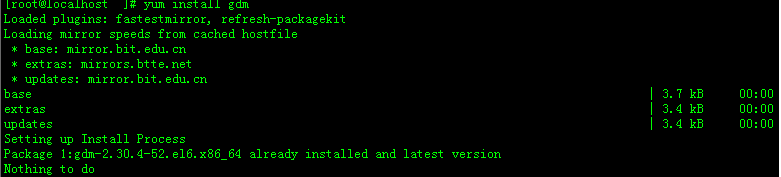
2、 安装gdm,如果已安装可跳过这步,我测试机器已经安装过,如下图:
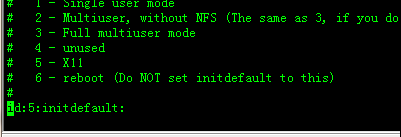
3、 将系统配置为图形模式,编辑/etc/inittab,修改为id:5:initdefault:
4、 修改/etc/gdm/custom.conf文件,添加如下内容:
[security]
AllowRoot=true
AllowRemoteRoot=true
[xdmcp]
Port=177
Enable=1

5、 重启机器,用xmanager连接即可。