C#利用FileSystemWatcher对文件进行监控
1、打开VS,选择Visual C#模板创建WPF应用程序。输入名称FileSystemWatcherTest,并指定其位置,点击确认按钮进入代码编写界面。

2、准备一个RichTextBox控件拖入到Form1界面中,点击右上角三角形,弹出RichTextBox任务,选择在父容器中停靠。该RichTextBox将用于监控外部记事本改变时显示改动后的内容。

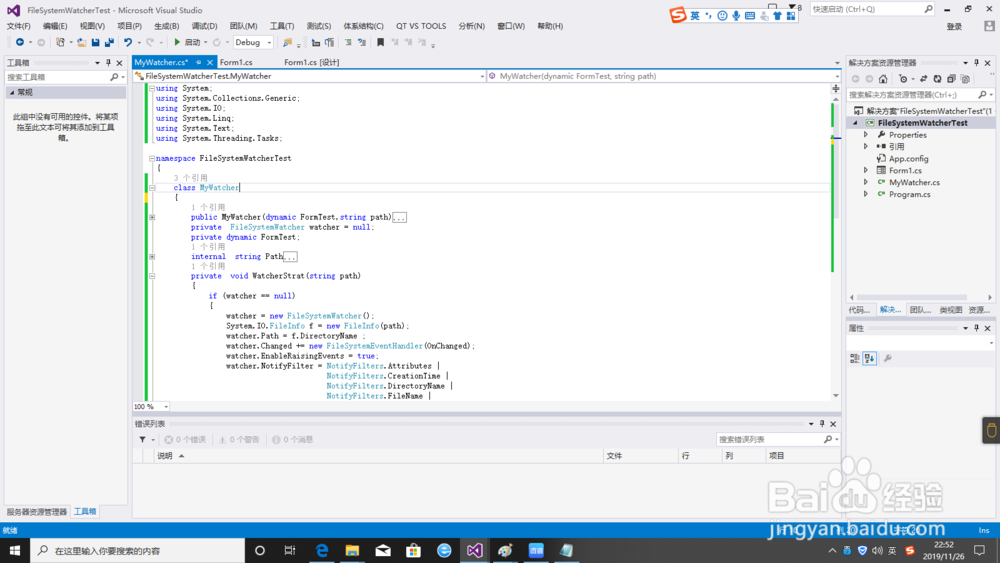
3、添加一个名为MyWatcher的新类。可点击VS菜单项中的【项目】在其下拉菜单中找到【添加类】并点击,弹出添加新项窗口,在点击C#项中【类】,输入名称MyWatcher,点击【添加】按钮

4、在MyWatcher.cs页面中添加复制粘贴如下代码:
using System;
using System.Collections.Generic;
using System.IO;
using System.Linq;
using System.Text;
using System.Threading.Tasks;
namespace FileSystemWatcherTest
{
class MyWatcher
{
public MyWatcher(dynamic FormTest,string path)
{
this.FormTest = FormTest;
this.Path = path;
}
private FileSystemWatcher watcher = null;
private dynamic FormTest;
internal string Path
{
set
{
//watcher.Path = value;
WatcherStrat(value);
}
}
private void WatcherStrat(string path)
{
if (watcher == null)
{
watcher = new FileSystemWatcher();
System.IO.FileInfo f = new FileInfo(path);
watcher.Path = f.DirectoryName ;
watcher.Changed += new FileSystemEventHandler(OnChanged);
watcher.EnableRaisingEvents = true;
watcher.NotifyFilter = NotifyFilters.Attributes |
NotifyFilters.CreationTime |
NotifyFilters.DirectoryName |
NotifyFilters.FileName |
NotifyFilters.LastAccess |
NotifyFilters.LastWrite |
NotifyFilters.Security |
NotifyFilters.Size;
watcher.IncludeSubdirectories = true;
watcher.Filter ="*"+ f.Extension;
}
else
{
System.IO.FileInfo f = new FileInfo(path);
watcher.Path = f.FullName;
watcher.Filter = "*" + f.Extension;
}
}
private void OnChanged(object source, FileSystemEventArgs e)
{
FormTest.TxtChanged(watcher.Path + "\\" + e.Name);
}
}
}
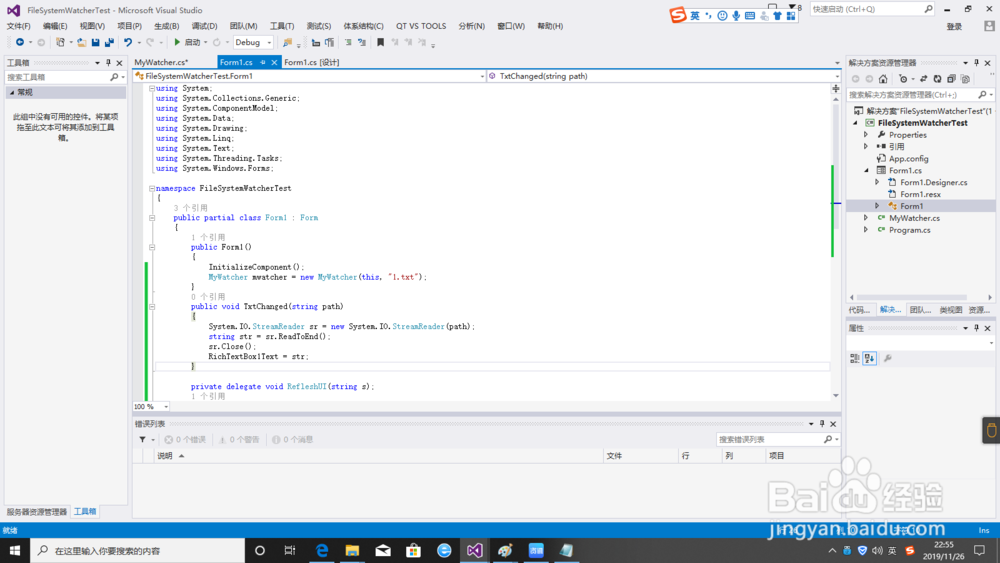
5、在Form1页面中添加复制粘贴如下代码:
using System;
using System.Collections.Generic;
using System.ComponentModel;
using System.Data;
using System.Drawing;
using System.Linq;
using System.Text;
using System.Threading.Tasks;
using System.Windows.Forms;
namespace FileSystemWatcherTest
{
public partial class Form1 : Form
{
public Form1()
{
InitializeComponent();
MyWatcher mwatcher = new MyWatcher(this, "1.txt");
}
public void TxtChanged(string path)
{
System.IO.StreamReader sr = new System.IO.StreamReader(path);
string str = sr.ReadToEnd();
sr.Close();
RichTextBox1Text = str;
}
private delegate void RefleshUI(string s);
private void Thread(string s)//UI线程要做的事情
{
this.richTextBox1.Text = s;
}
public string RichTextBox1Text
{
set
{
this.richTextBox1.Invoke(new RefleshUI(Thread), value);
}
}
}
}
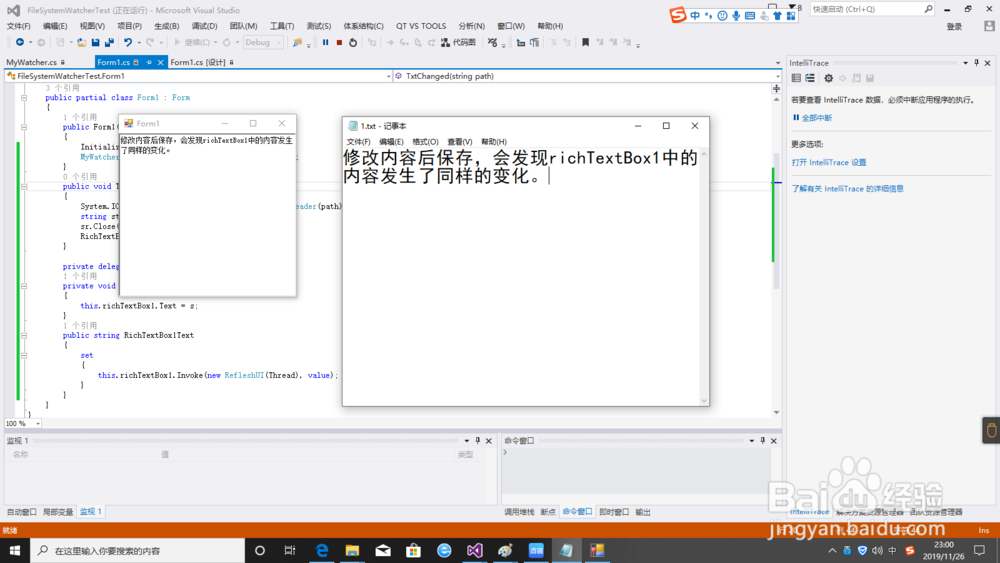
6、编译代码,生成解决方案。编译成功后,按F5执行。在生成目录下创建一个TXT文件,并修改其内容后保存,会发现richTextBox1中的内容发生了同样的变化。
声明:本网站引用、摘录或转载内容仅供网站访问者交流或参考,不代表本站立场,如存在版权或非法内容,请联系站长删除,联系邮箱:site.kefu@qq.com。
阅读量:45
阅读量:67
阅读量:65
阅读量:63
阅读量:127