Windows7怎样安装Python 3.5
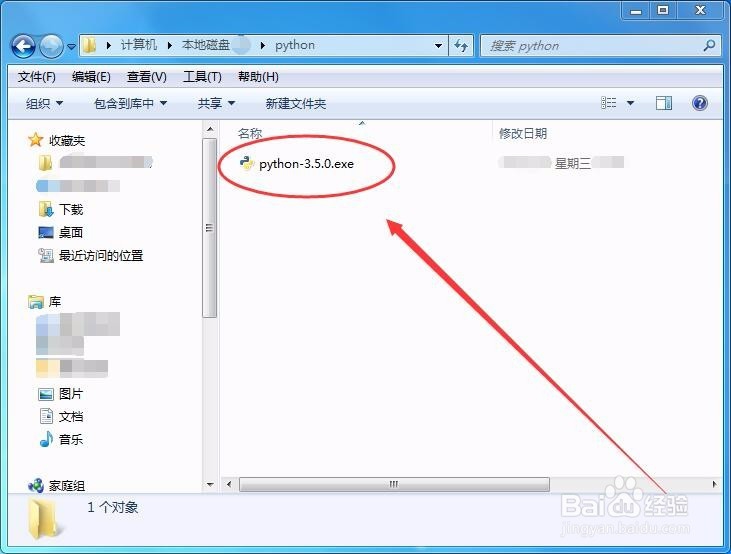
1、电脑上下载Python 3.5安装文件,双击打开。
2、安装界面中,选择自定义安装选项。
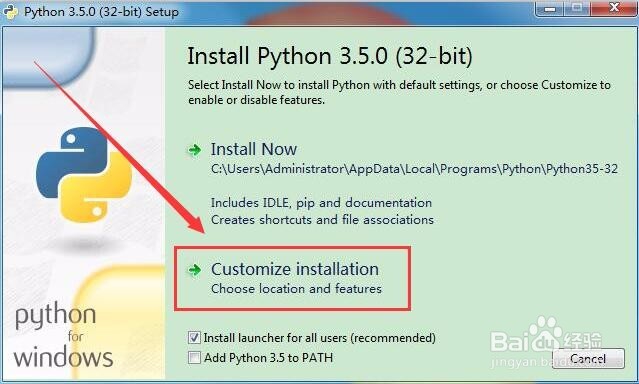
3、选择下方的两个选项,将多选框勾上。

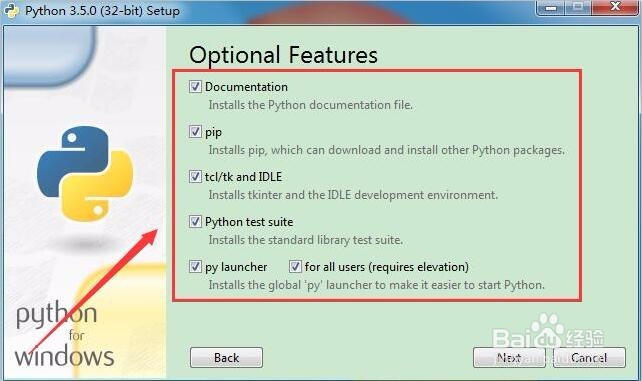
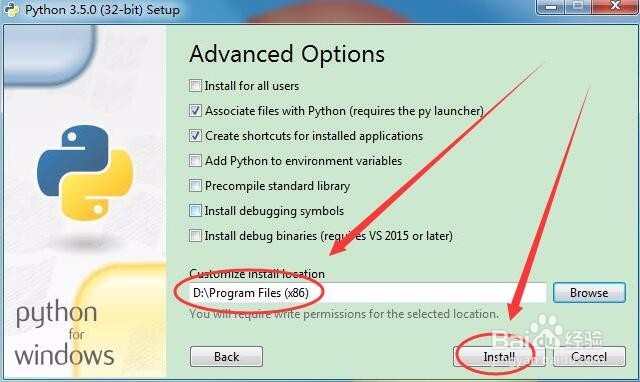
4、选项窗口中,勾选所有的选项。
5、高级窗口中,选择右边的浏览按钮。
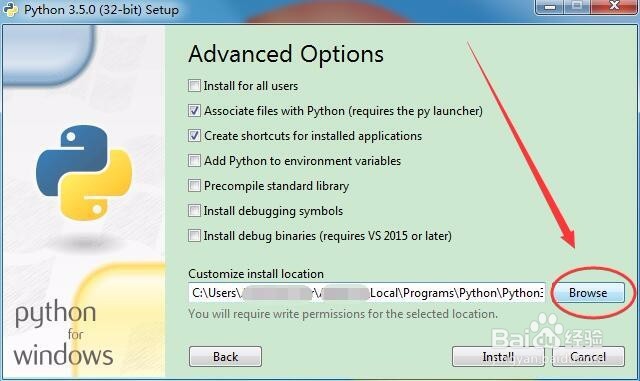
6、浏览窗口中,选择好自己的安装目录。

7、设置好安装目录后,单击安装按钮。
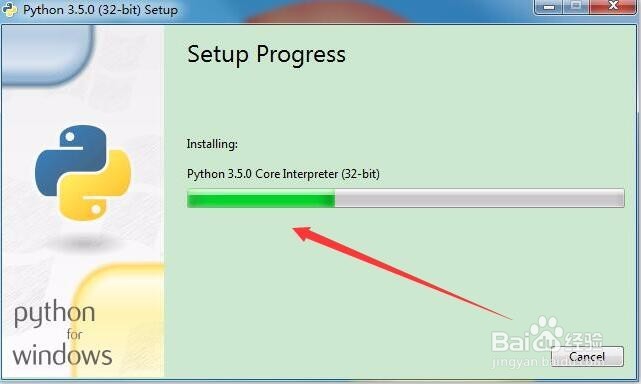
8、接着,静等程序完成安装。
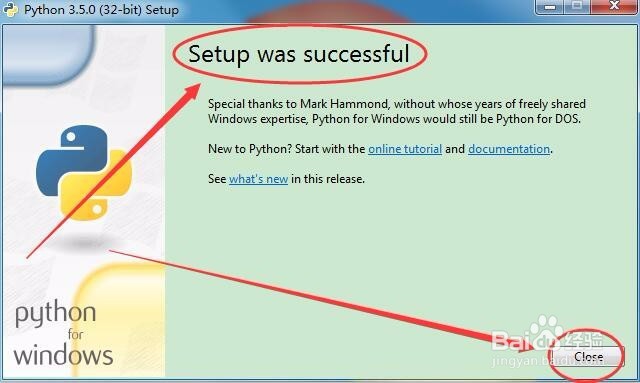
9、出现安装成功界面后,点击Close按钮,软件就装好了。
声明:本网站引用、摘录或转载内容仅供网站访问者交流或参考,不代表本站立场,如存在版权或非法内容,请联系站长删除,联系邮箱:site.kefu@qq.com。
阅读量:73
阅读量:33
阅读量:154
阅读量:113
阅读量:75