arduino 联接蓝牙模块
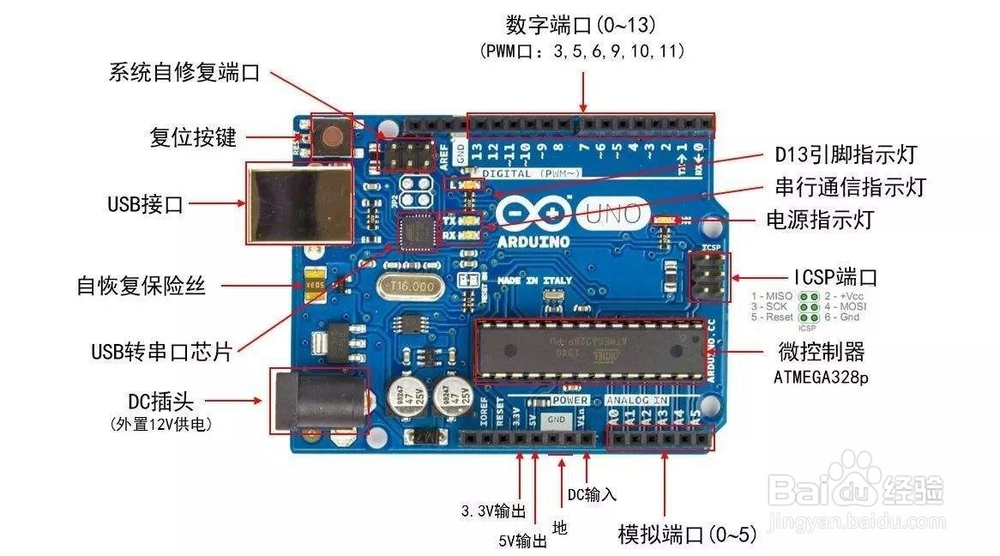
1、在连接硬件之前,大家仔细看这块开发板的硬件连接说明。
硬件连接,装备好一个ARDUINO板一个,USB线一根,这里USB线充当电源线,因为ARDUINO板电压为3.V-12V都可以用。准备好后按图连接。
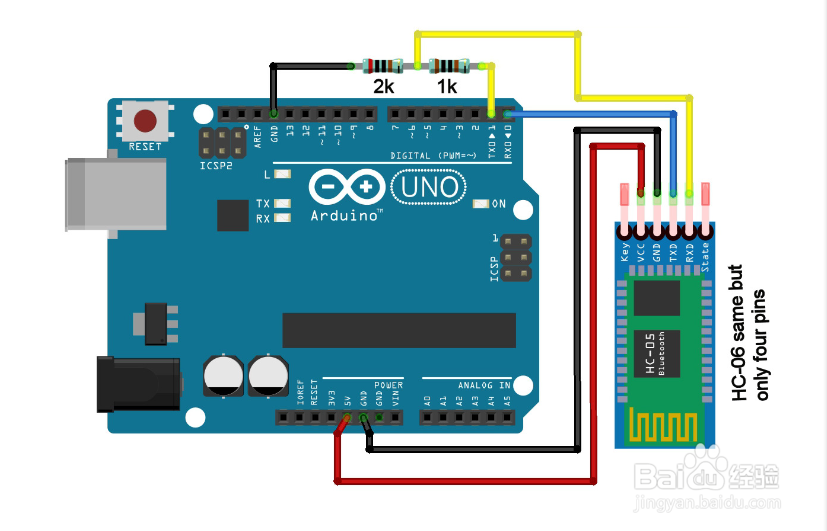
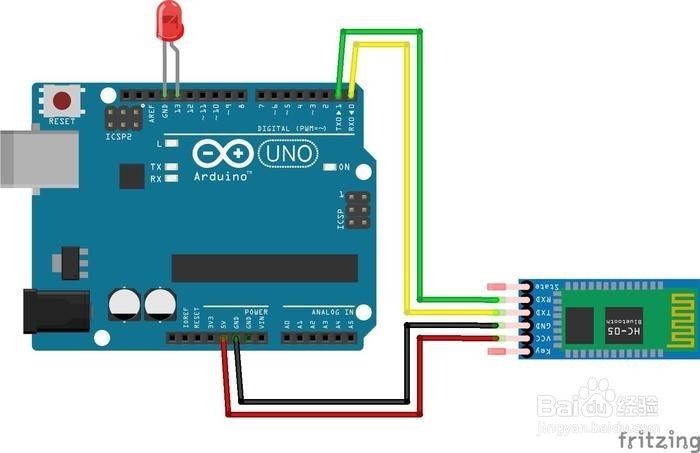
2、基本连接如下图所示。安全起见,加上二个电阻如果仅是低电压的测试也可以按图二连接测试 具体的接法,一定要注意开发板收发两个端的接法,如图三所示

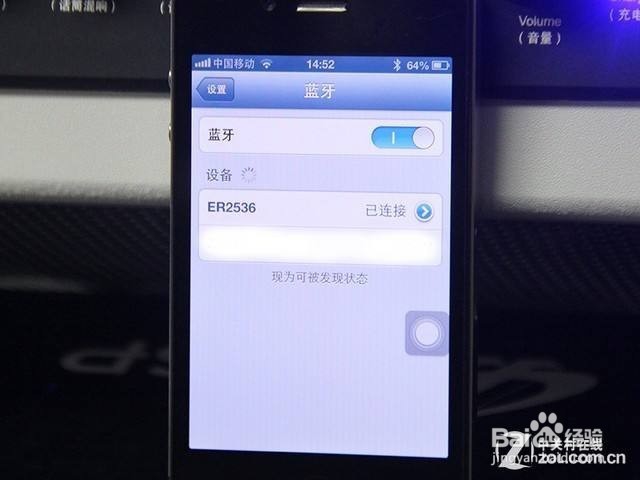
3、正确检查无误后连接USB上电会看到蓝牙模块有红色指示灯闪烁。这时,打开你的智能手机,以ANDROID手机为例。打开蓝牙开关并搜索找到相应的模块后如果是HC-06那么点击后连接配对,一般会要输入配对密码,一般为1234 或0000,输入后配对成功。便可以操作了。
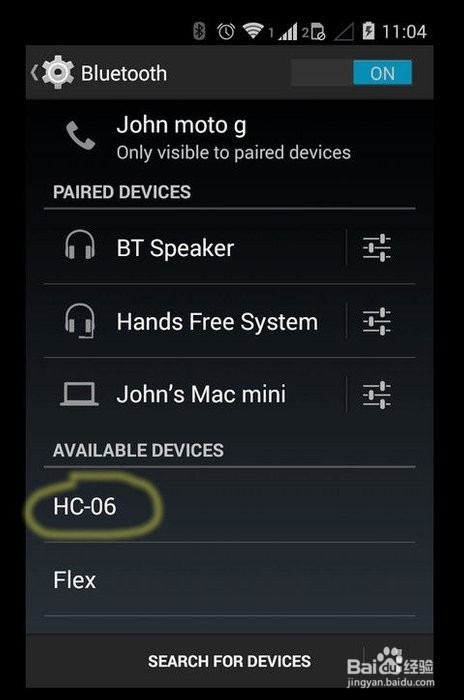
4、硬件连接后,连上电脑ARDUINO IDE 并上传相关代码测试。代码片断为:
#include <SoftwareSerial.h>
SoftwareSerial BT(10, 11);
// creates a "virtual" serial port/UART
// connect BT module TX to D10
// connect BT module RX to D11
// connect BT Vcc to 5V, GND to GND
void setup()
{
// set digital pin to control as an output
pinMode(13, OUTPUT);
// set the data rate for the SoftwareSerial port
BT.begin(9600);
// Send test message to other device
BT.println("Hello from Arduino");
}
char a; // stores incoming character from other device
void loop()
{
if (BT.available())
// if text arrived in from BT serial...
{
a=(BT.read());
if (a=='1')
{
digitalWrite(13, HIGH);
BT.println("LED on");
}
if (a=='2')
{
digitalWrite(13, LOW);
BT.println("LED off");
}
if (a=='?')
{
BT.println("Send '1' to turn LED on");
BT.println("Send '2' to turn LED on");
}
// you can add more "if" statements with other characters to add more commands
}
}
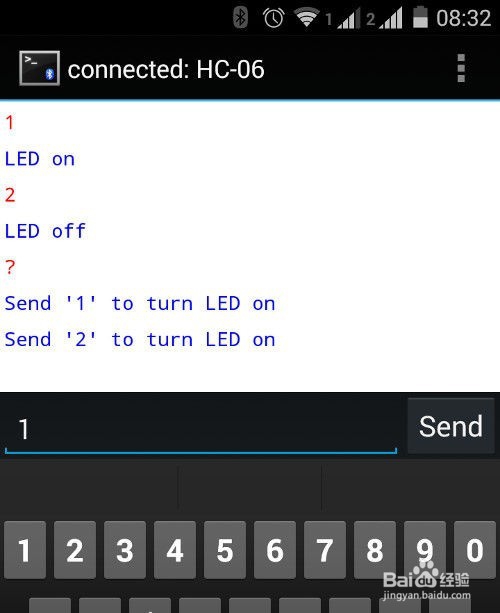
5、把上图的代码上传至开发板后,用手机连上这块开发板的蓝牙后,可以通过手机发射指令来查看效果了。