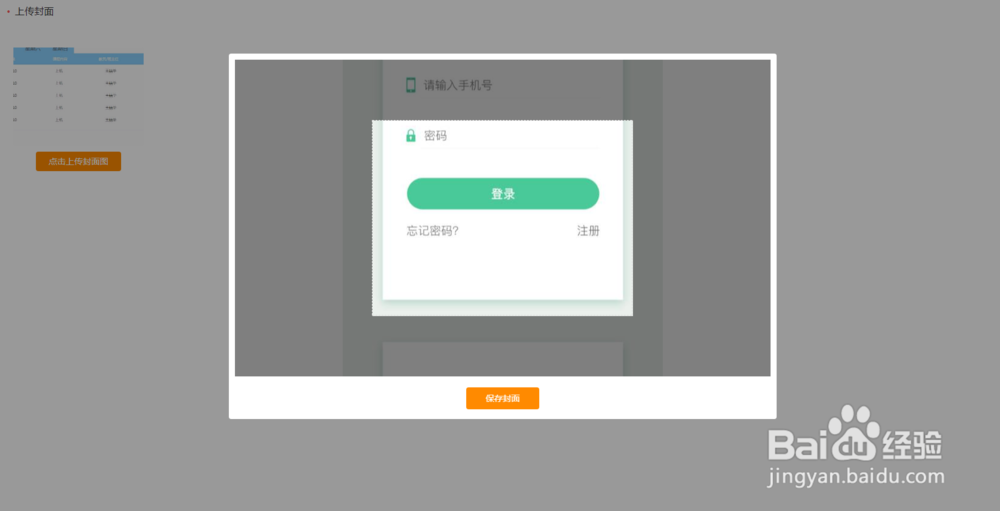
jQuery上传图片裁剪区域并保存
1、新建html文档。
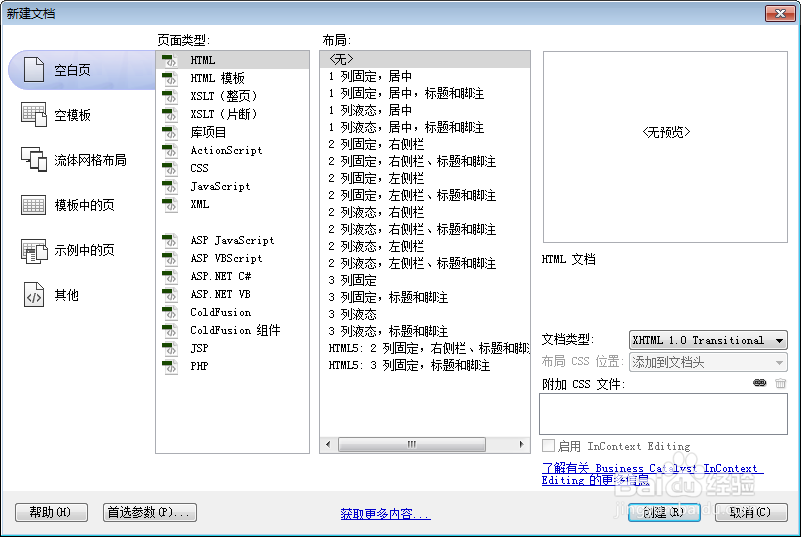
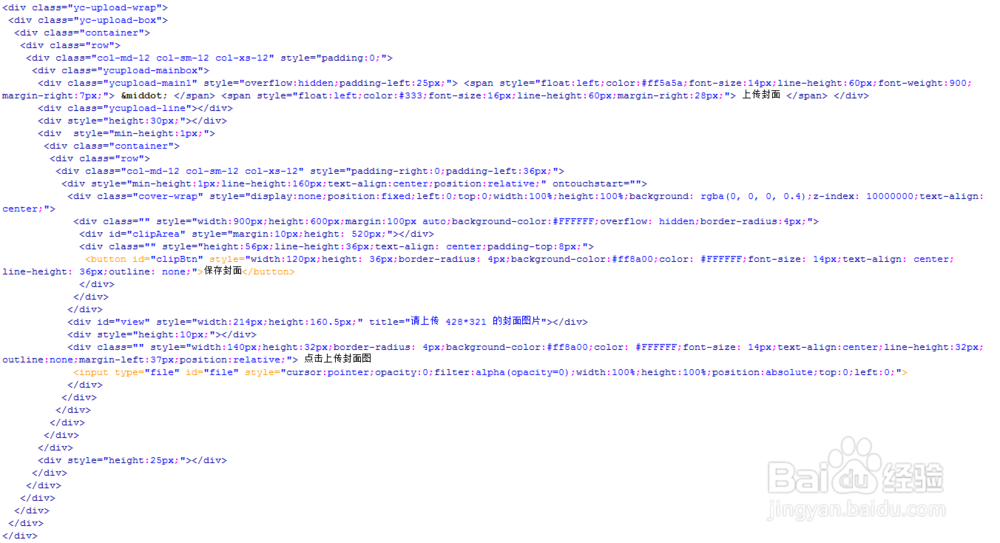
2、书写hmtl代码。
<div class="yc-upload-wrap">
<div class="yc-upload-box">
<div class="container">
<div class="row">
<div class="col-md-12 col-sm-12 col-xs-12" style="padding:0;">
<div class="ycupload-mainbox">
<div class="ycupload-main1" style="overflow:hidden;padding-left:25px;"> <span style="float:left;color:#ff5a5a;font-size:14px;line-height:60px;font-weight:900;margin-right:7px;"> · </span> <span style="float:left;color:#333;font-size:16px;line-height:60px;margin-right:28px;"> 上传封面 </span> </div>
<div class="ycupload-line"></div>
<div style="height:30px;"></div>
<div style="min-height:1px;">
<div class="container">
<div class="row">
<div class="col-md-12 col-sm-12 col-xs-12" style="padding-right:0;padding-left:36px;">
<div style="min-height:1px;line-height:160px;text-align:center;position:relative;" ontouchstart="">
<div class="cover-wrap" style="display:none;position:fixed;left:0;top:0;width:100%;height:100%;background: rgba(0, 0, 0, 0.4);z-index: 10000000;text-align:center;">
<div class="" style="width:900px;height:600px;margin:100px auto;background-color:#FFFFFF;overflow: hidden;border-radius:4px;">
<div id="clipArea" style="margin:10px;height: 520px;"></div>
<div class="" style="height:56px;line-height:36px;text-align: center;padding-top:8px;">
<button id="clipBtn" style="width:120px;height: 36px;border-radius: 4px;background-color:#ff8a00;color: #FFFFFF;font-size: 14px;text-align: center;line-height: 36px;outline: none;">保存封面</button>
</div>
</div>
</div>
<div id="view" style="width:214px;height:160.5px;" title="请上传 428*321 的封面图片"></div>
<div style="height:10px;"></div>
<div class="" style="width:140px;height:32px;border-radius: 4px;background-color:#ff8a00;color: #FFFFFF;font-size: 14px;text-align:center;line-height:32px;outline:none;margin-left:37px;position:relative;"> 点击上传封面图
<input type="file" id="file" style="cursor:pointer;opacity:0;filter:alpha(opacity=0);width:100%;height:100%;position:absolute;top:0;left:0;">
</div>
</div>
</div>
</div>
</div>
</div>
<div style="height:25px;"></div>
</div>
</div>
</div>
</div>
</div>
</div>
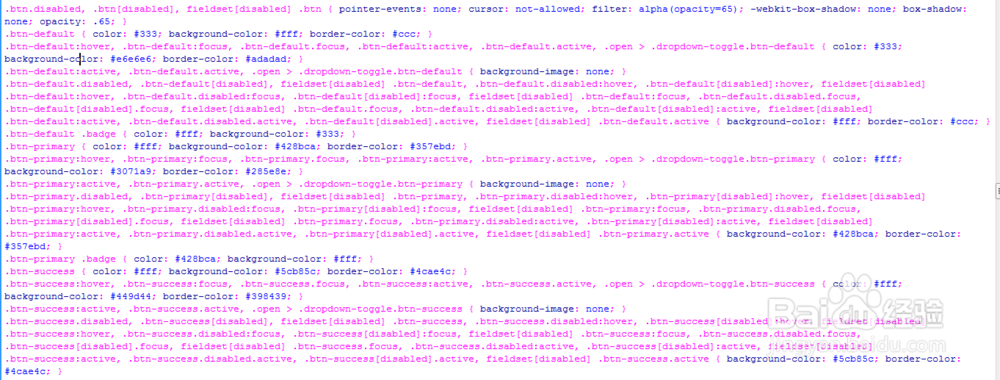
3、书写css代码。
.btn.disabled, .btn[disabled], fieldset[disabled] .btn { pointer-events: none; cursor: not-allowed; filter: alpha(opacity=65); -webkit-box-shadow: none; box-shadow: none; opacity: .65; }
.btn-default { color: #333; background-color: #fff; border-color: #ccc; }
.btn-default:hover, .btn-default:focus, .btn-default.focus, .btn-default:active, .btn-default.active, .open > .dropdown-toggle.btn-default { color: #333; background-color: #e6e6e6; border-color: #adadad; }
.btn-default:active, .btn-default.active, .open > .dropdown-toggle.btn-default { background-image: none; }
.btn-default.disabled, .btn-default[disabled], fieldset[disabled] .btn-default, .btn-default.disabled:hover, .btn-default[disabled]:hover, fieldset[disabled] .btn-default:hover, .btn-default.disabled:focus, .btn-default[disabled]:focus, fieldset[disabled] .btn-default:focus, .btn-default.disabled.focus, .btn-default[disabled].focus, fieldset[disabled] .btn-default.focus, .btn-default.disabled:active, .btn-default[disabled]:active, fieldset[disabled] .btn-default:active, .btn-default.disabled.active, .btn-default[disabled].active, fieldset[disabled] .btn-default.active { background-color: #fff; border-color: #ccc; }
.btn-default .badge { color: #fff; background-color: #333; }
.btn-primary { color: #fff; background-color: #428bca; border-color: #357ebd; }
.btn-primary:hover, .btn-primary:focus, .btn-primary.focus, .btn-primary:active, .btn-primary.active, .open > .dropdown-toggle.btn-primary { color: #fff; background-color: #3071a9; border-color: #285e8e; }
.btn-primary:active, .btn-primary.active, .open > .dropdown-toggle.btn-primary { background-image: none; }
.btn-primary.disabled, .btn-primary[disabled], fieldset[disabled] .btn-primary, .btn-primary.disabled:hover, .btn-primary[disabled]:hover, fieldset[disabled] .btn-primary:hover, .btn-primary.disabled:focus, .btn-primary[disabled]:focus, fieldset[disabled] .btn-primary:focus, .btn-primary.disabled.focus, .btn-primary[disabled].focus, fieldset[disabled] .btn-primary.focus, .btn-primary.disabled:active, .btn-primary[disabled]:active, fieldset[disabled] .btn-primary:active, .btn-primary.disabled.active, .btn-primary[disabled].active, fieldset[disabled] .btn-primary.active { background-color: #428bca; border-color: #357ebd; }
.btn-primary .badge { color: #428bca; background-color: #fff; }
.btn-success { color: #fff; background-color: #5cb85c; border-color: #4cae4c; }
.btn-success:hover, .btn-success:focus, .btn-success.focus, .btn-success:active, .btn-success.active, .open > .dropdown-toggle.btn-success { color: #fff; background-color: #449d44; border-color: #398439; }
.btn-success:active, .btn-success.active, .open > .dropdown-toggle.btn-success { background-image: none; }
.btn-success.disabled, .btn-success[disabled], fieldset[disabled] .btn-success, .btn-success.disabled:hover, .btn-success[disabled]:hover, fieldset[disabled] .btn-success:hover, .btn-success.disabled:focus, .btn-success[disabled]:focus, fieldset[disabled] .btn-success:focus, .btn-success.disabled.focus, .btn-success[disabled].focus, fieldset[disabled] .btn-success.focus, .btn-success.disabled:active, .btn-success[disabled]:active, fieldset[disabled] .btn-success:active, .btn-success.disabled.active, .btn-success[disabled].active, fieldset[disabled] .btn-success.active { background-color: #5cb85c; border-color: #4cae4c; }
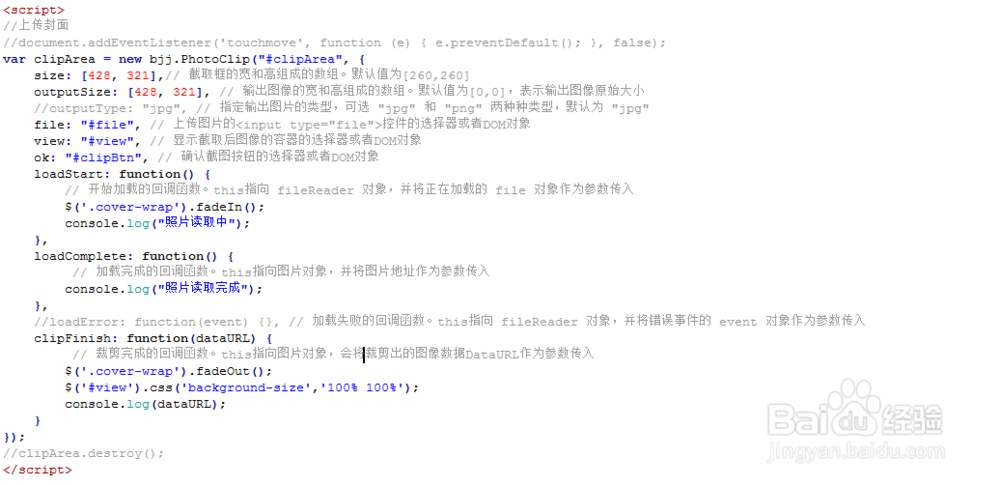
4、书写并添加js代码。
<script>
//上传封面
//document.addEventListener('touchmove', function (e) { e.preventDefault(); }, false);
var clipArea = new bjj.PhotoClip("#clipArea", {
size: [428, 321],// 截取框的宽和高组成的数组。默认值为[260,260]
outputSize: [428, 321], // 输出图像的宽和高组成的数组。默认值为[0,0],表示输出图像原始大小
//outputType: "jpg", // 指定输出图片的类型,可选 "jpg" 和 "png" 两种种类型,默认为 "jpg"
file: "#file", // 上传图片的<input type="file">控件的选择器或者DOM对象
view: "#view", // 显示截取后图像的容器的选择器或者DOM对象
ok: "#clipBtn", // 确认截图按钮的选择器或者DOM对象
loadStart: function() {
// 开始加载的回调函数。this指向 fileReader 对象,并将正在加载的 file 对象作为参数传入
$('.cover-wrap').fadeIn();
console.log("照片读取中");
},
loadComplete: function() {
// 加载完成的回调函数。this指向图片对象,并将图片地址作为参数传入
console.log("照片读取完成");
},
//loadError: function(event) {}, // 加载失败的回调函数。this指向 fileReader 对象,并将错误事件的 event 对象作为参数传入
clipFinish: function(dataURL) {
// 裁剪完成的回调函数。this指向图片对象,会将裁剪出的图像数据DataURL作为参数传入
$('.cover-wrap').fadeOut();
$('#view').css('background-size','100% 100%');
console.log(dataURL);
}
});
//clipArea.destroy();
</script>
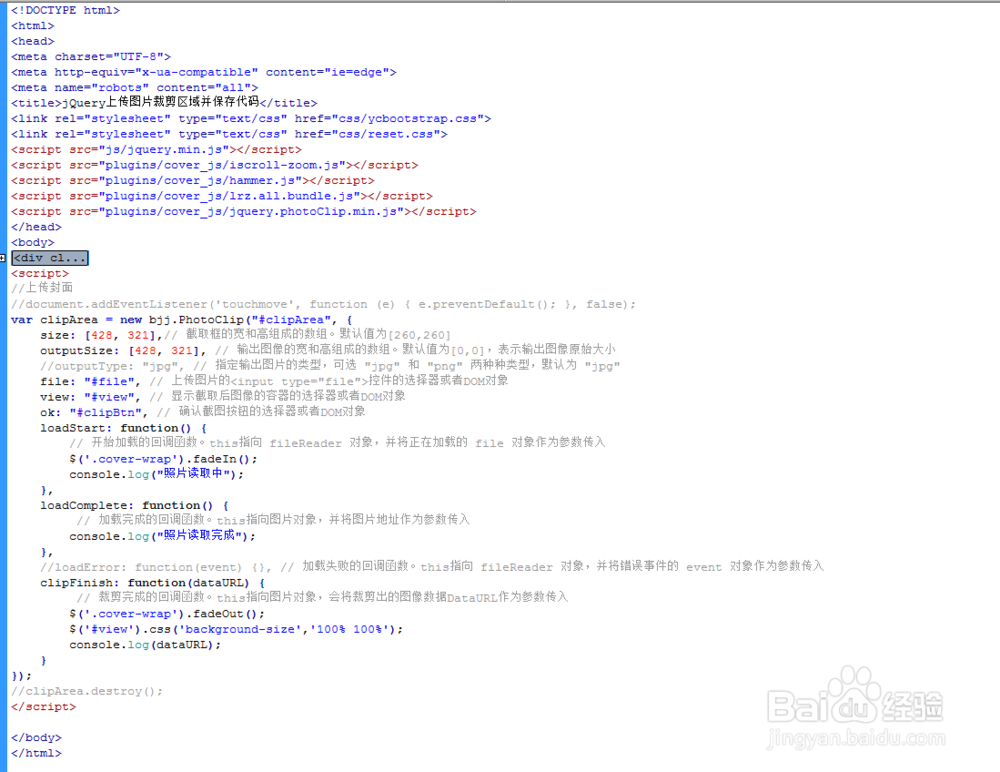
5、代码整体结构。
6、查看效果。