如何在word2013文档中插入PowerPoint?
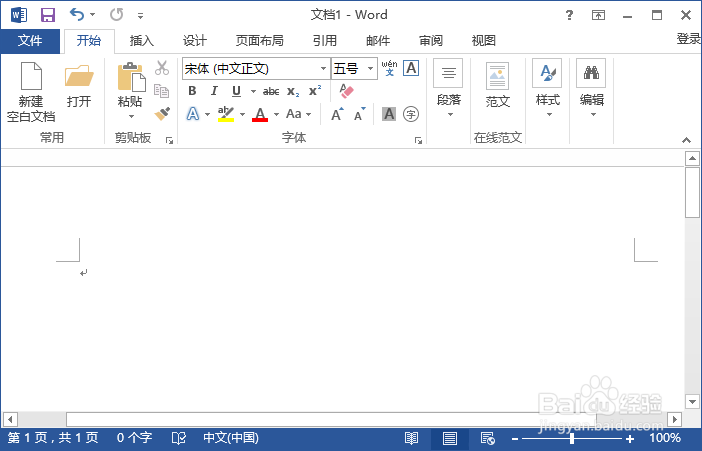
1、打开需要插入PPT的word文档
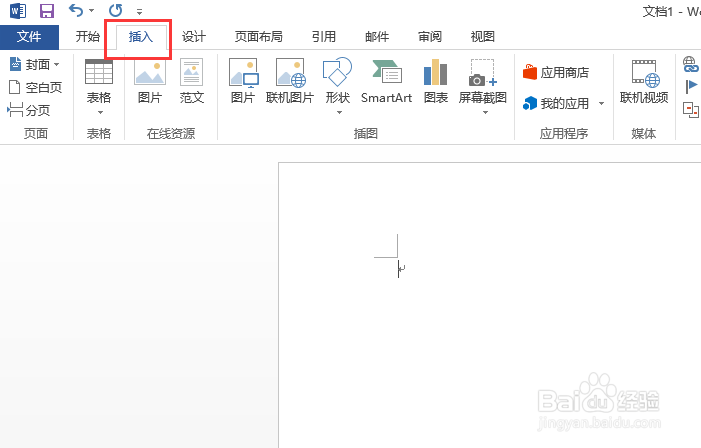
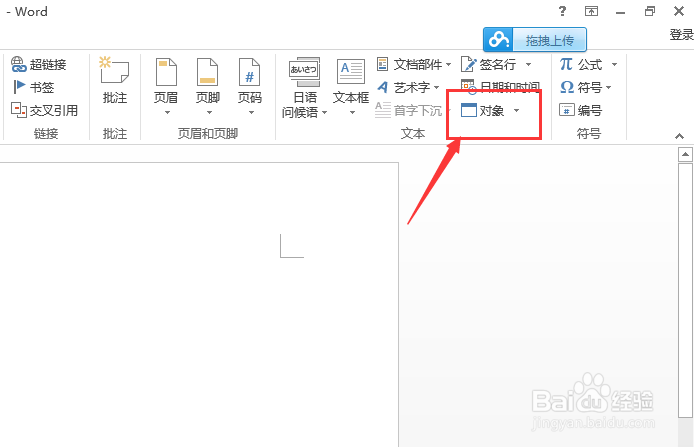
2、选择菜单栏的“插入”,在插入子菜单下选择“对象”
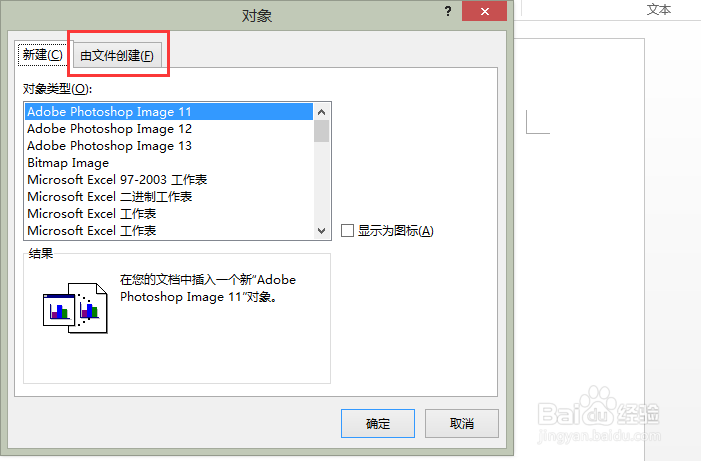
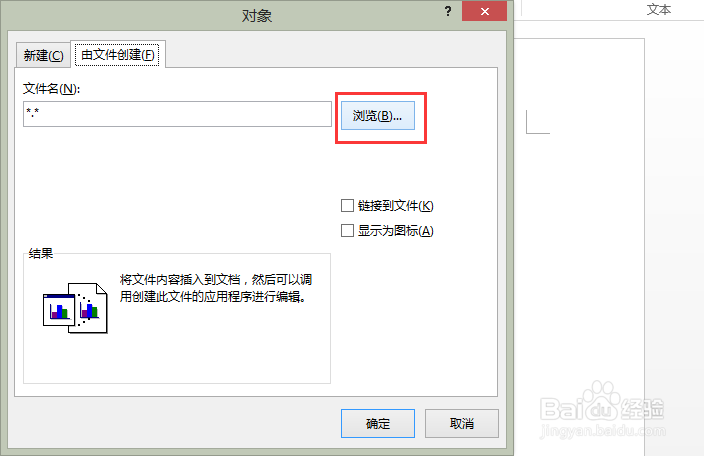
3、这时会弹出“对象”对话框,点击“由文件创建”
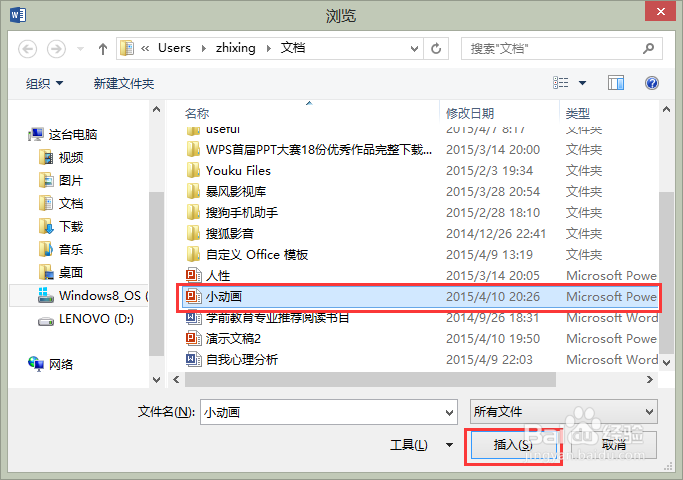
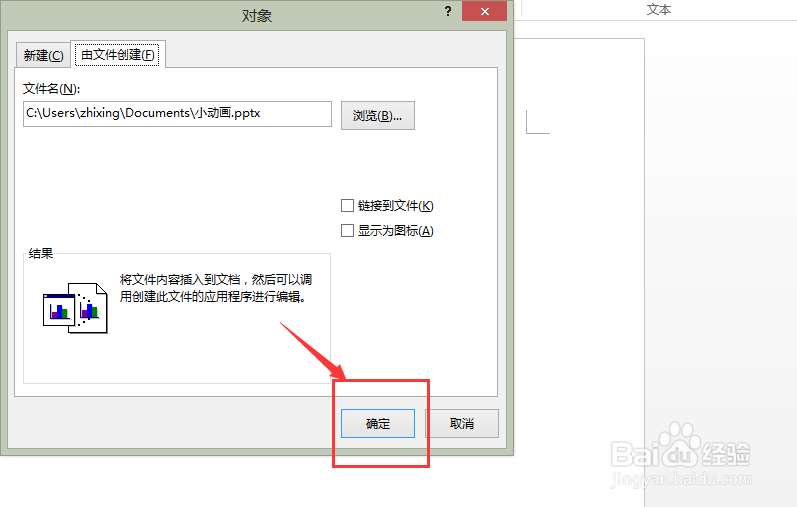
4、点击“浏览”,选择需要插入的PPT文件,点击“插入”,这时会返回“对象”对话框,继续点击“确定”
5、这时,PPT文件就插入到word中。双击幻灯片,便可直接放映幻灯片
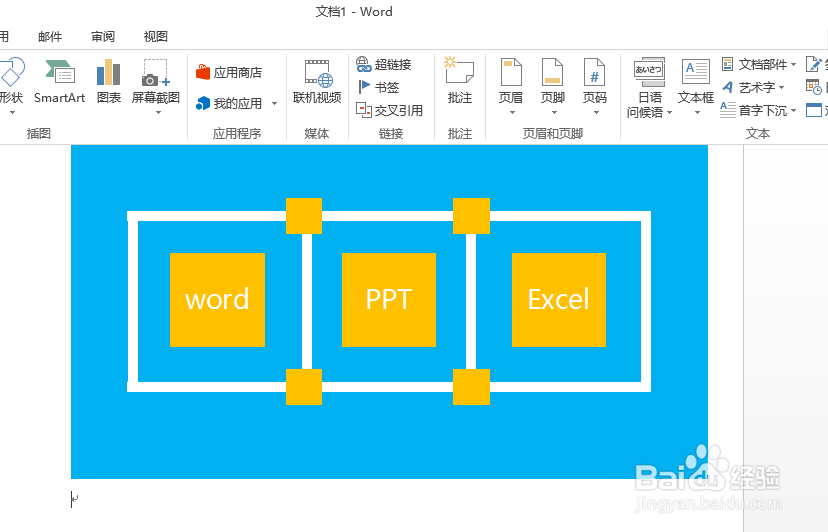
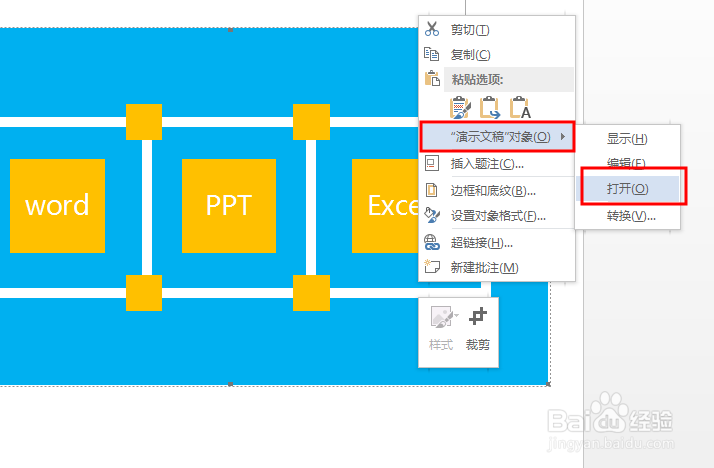
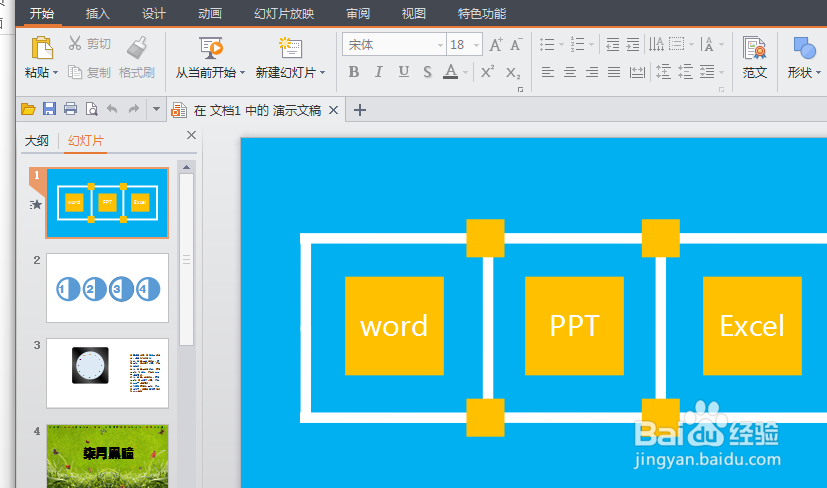
6、如需要继续编辑PPT文稿,就在幻灯片上单击鼠标右键,选择“演示文稿对象”—打开,这时会以PPT打开该演示文稿,只需在PPT中编辑完文档直接退出即可。
声明:本网站引用、摘录或转载内容仅供网站访问者交流或参考,不代表本站立场,如存在版权或非法内容,请联系站长删除,联系邮箱:site.kefu@qq.com。
阅读量:130
阅读量:155
阅读量:130
阅读量:40
阅读量:181