WPF 利用SaveFileDialog 保存 .csv表格数据
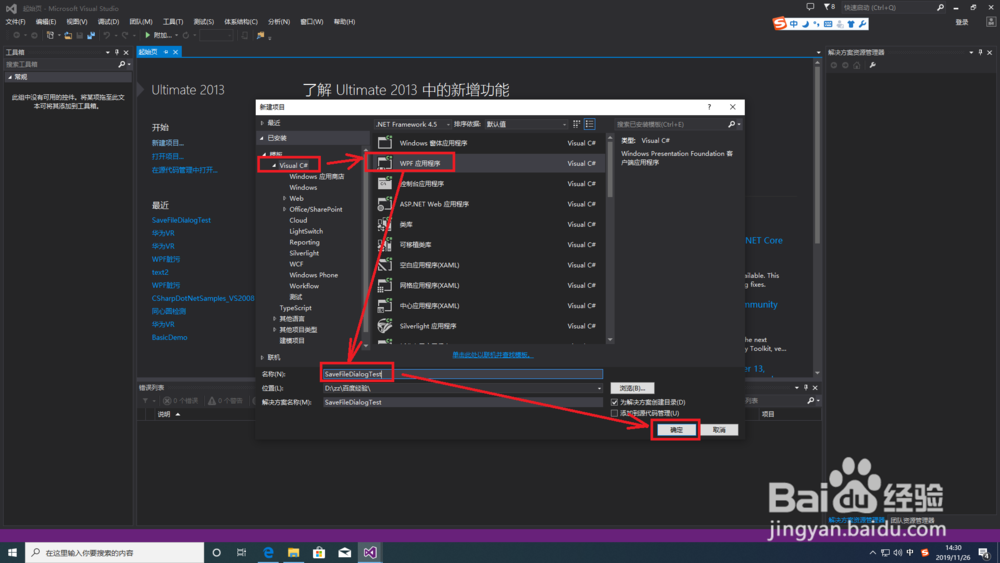
1、打开VS,选择Visual C#模板创建WPF应用程序。输入SaveFileDialogTest,并指定其位置,点击确认按钮进入代码编写界面。
2、鼠标按住左侧【常用WPF组件】下的【Button】按钮控件拖动到MainWindow工作窗口中,会自动生成相关代码。
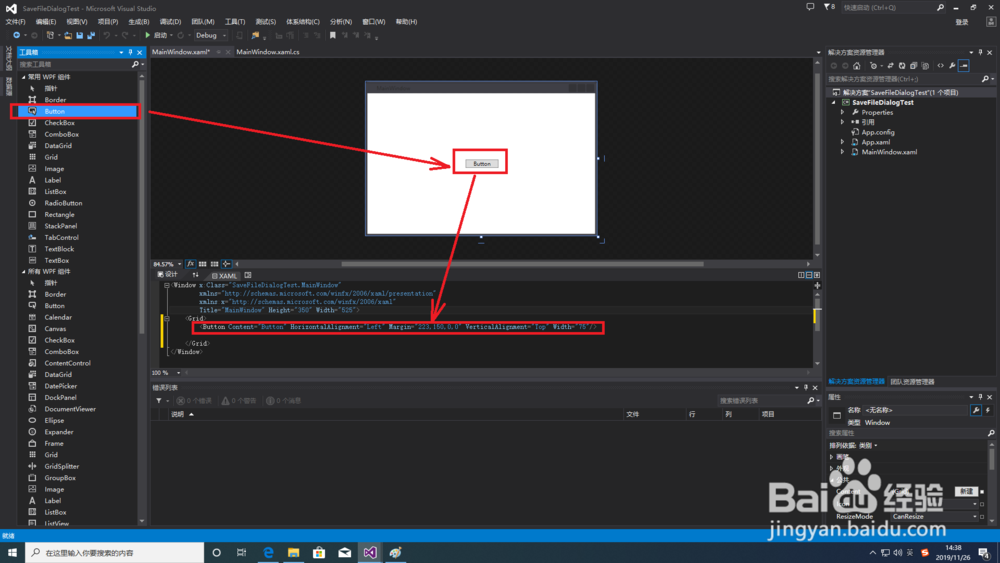
3、为按钮添加自动事件,添加完后MainWindow.xaml页面中的代码如下:
<Window x:Class="SaveFileDialogTest.MainWindow"
xmlns="http://schemas.microsoft.com/winfx/2006/xaml/presentation"
xmlns:x="http://schemas.microsoft.com/winfx/2006/xaml"
Title="MainWindow" Height="350 <Grid>
<Button Content="Button" HorizontalAlignment="Left" Margin="223,150,0,0" VerticalAlignment="Top </Grid>
</Window>

4、在MainWindow.xaml.cs页面中添加如下代码:
using System;
using System.Collections.Generic;
using System.Linq;
using System.Text;
using System.Threading.Tasks;
using System.Windows;
using System.Windows.Controls;
using System.Windows.Data;
using System.Windows.Documents;
using System.Windows.Input;
using System.Windows.Media;
using System.Windows.Media.Imaging;
using System.Windows.Navigation;
using System.Windows.Shapes;
namespace SaveFileDialogTest
{
/// <summary>
/// MainWindow.xaml 的交互逻辑
/// </summary>
public partial class MainWindow : Window
{
public MainWindow()
{
InitializeComponent();
}
private void Button_Click(object sender, RoutedEventArgs e)
{
Microsoft.Win32.SaveFileDialog openFileDialog = new Microsoft.Win32.SaveFileDialog();
openFileDialog.DefaultExt = ".csv";
openFileDialog.AddExtension = true;
openFileDialog.Filter = "(文本文件*.csv)|*.csv";
openFileDialog.FilterIndex = 2;
if (openFileDialog.ShowDialog() == true)
{
try
{
System.IO.StreamWriter sw = new System.IO.StreamWriter(openFileDialog.FileName, true, Encoding.Default);
//用逗号分开
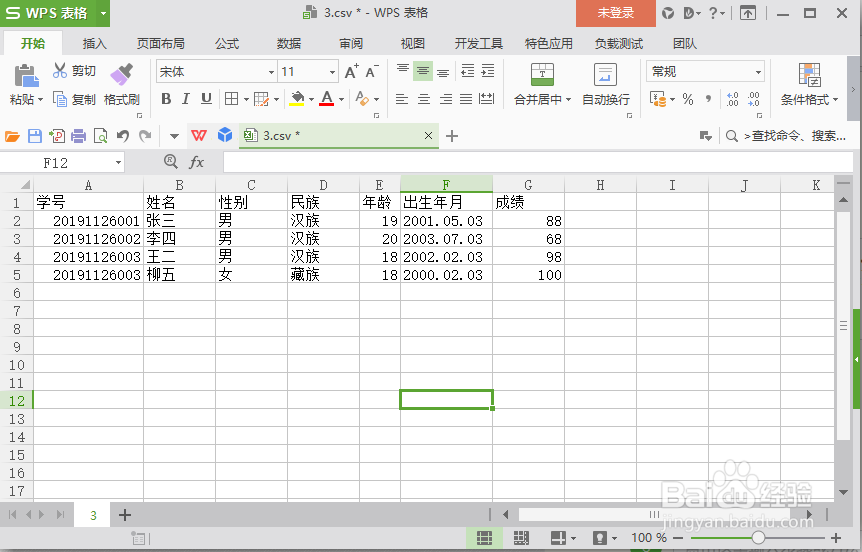
string 表头 = "学号,姓名,性别,民族,年龄,出生年月,成绩";
sw.WriteLine(表头);
sw.Flush();
string 学生i = "20191126001,张三,男,汉族,19,2001.05.03,88";
sw.WriteLine(学生i);
sw.Flush();
学生i = "20191126002,李四,男,汉族,20,2003.07.03,68";
sw.WriteLine(学生i);
sw.Flush();
学生i = "20191126003,王二,男,汉族,18,2002.02.03,98";
sw.WriteLine(学生i);
sw.Flush();
学生i = "20191126003,柳五,女,藏族,18,2000.02.03,100";
sw.WriteLine(学生i);
sw.Flush();
sw.Close();
}
catch
{
MessageBox.Show("出错!文件已打开,保存前需关闭文件");
}
}
}
}
}
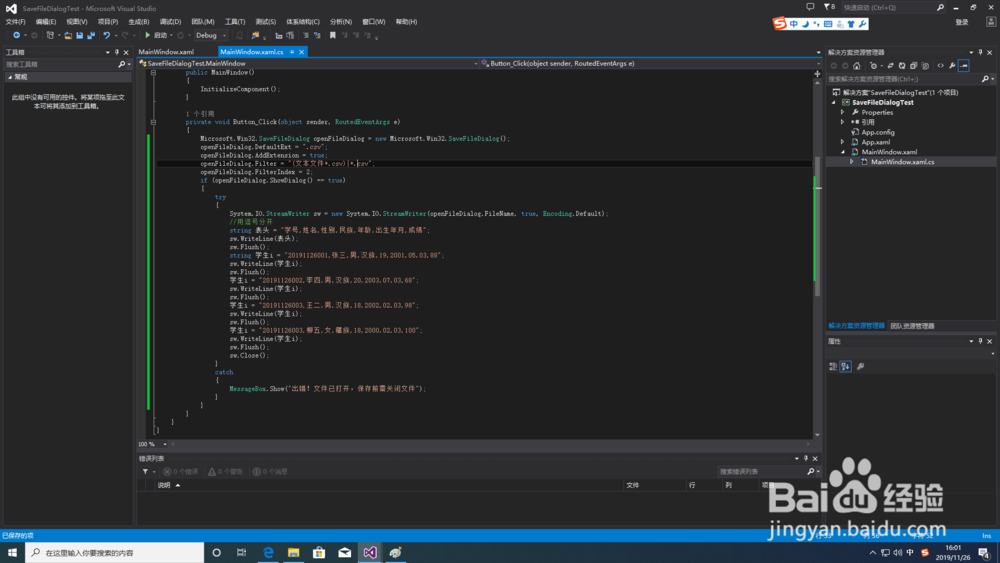
5、编译代码,生成解决方案。编译成功后,按F5执行。在窗口中点击按钮,弹出自定义的【选择视频文件】菜单,点击执行

6、用Excel查看文件保存结果。
声明:本网站引用、摘录或转载内容仅供网站访问者交流或参考,不代表本站立场,如存在版权或非法内容,请联系站长删除,联系邮箱:site.kefu@qq.com。
阅读量:120
阅读量:72
阅读量:114
阅读量:179
阅读量:178